
Make a Fireworks Video Effect for a Personal Milestone
Create a Fireworks Video Effect
History
Loading history…
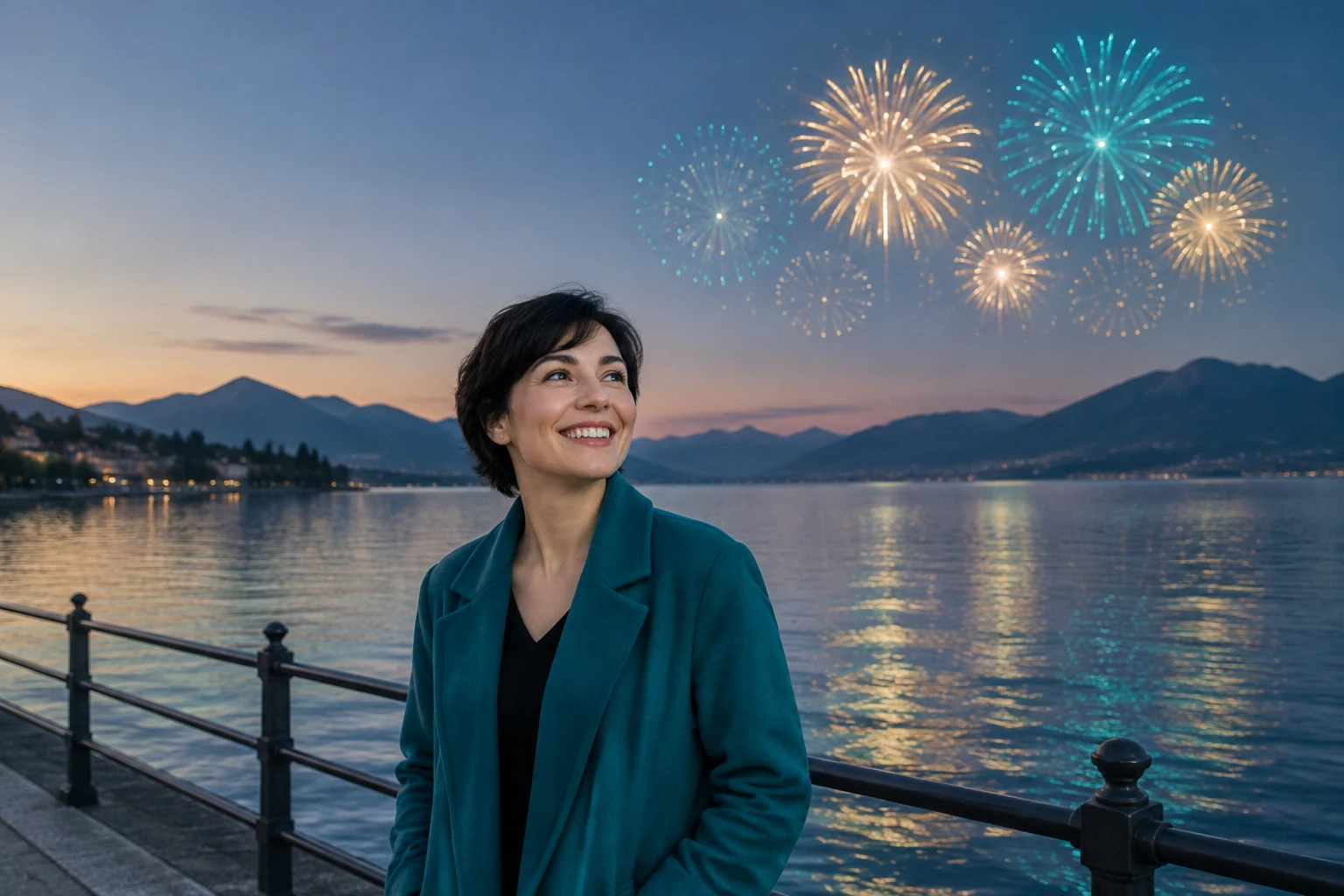
A fireworks video effect can make a personal milestone feel celebratory without turning the moment into a spectacle. This guide focuses on one fictional adult woman with short black hair and a teal jacket at a quiet lakeside promenade, where gold and deep turquoise fireworks rise beyond a simple dark railing and shimmer on the water. Start with a text prompt or a single photo, shape the scene with editable instructions, then review the whole clip before deciding what to keep.
Watch fireworks timing and sky framing
Create your Fireworks video
Choose a starting mode
Use Text to Video to build an original scene from the editable prompt, with no uploaded file. Choose Image to Video to animate one uploaded photo; its editable prompt adapts that photo rather than substituting the example woman. This guide adds themed prompt defaults to Seedance 2.5, not a separate effect preset.
Set the scene
For Image to Video, choose a clear portrait with open sky if the composition allows it. Keep the fireworks in the background: ask for trails rising behind the subject, a few expanding bursts, and a quiet fade. A simple railing and visible water help keep the greeting grounded and make reflections part of the scene.
Choose the available output options
Set duration, resolution, aspect ratio, and audio using the options currently offered by the form. The quote appears beside Generate; check it before submitting. Availability, any free eligibility, and credit requirements can depend on your account and current terms, so confirm the conditions shown in the app rather than relying on a fixed promise.
Generate, review, and refine
Submit the task and check its status in History. Wait times vary, so use History to find pending and completed tasks. Play the entire clip and inspect the face, hands, exposure, burst timing, sound, and crop. If something needs work, revise one variable at a time—for example, ask for fewer bursts or a slower fade—then review the new version.
Keep the greeting personal
The strongest version of this idea is restrained: a nearly still subject, an unhurried camera, and fireworks that support rather than dominate the milestone. The example describes a fictional adult woman with short black hair in a teal jacket at a quiet lakeside promenade. Gold and deep turquoise bursts rise behind her, while their light makes a subtle pattern across the water. Treat the scene as a prompt direction, not a required preset or a promise that every generation will match it.
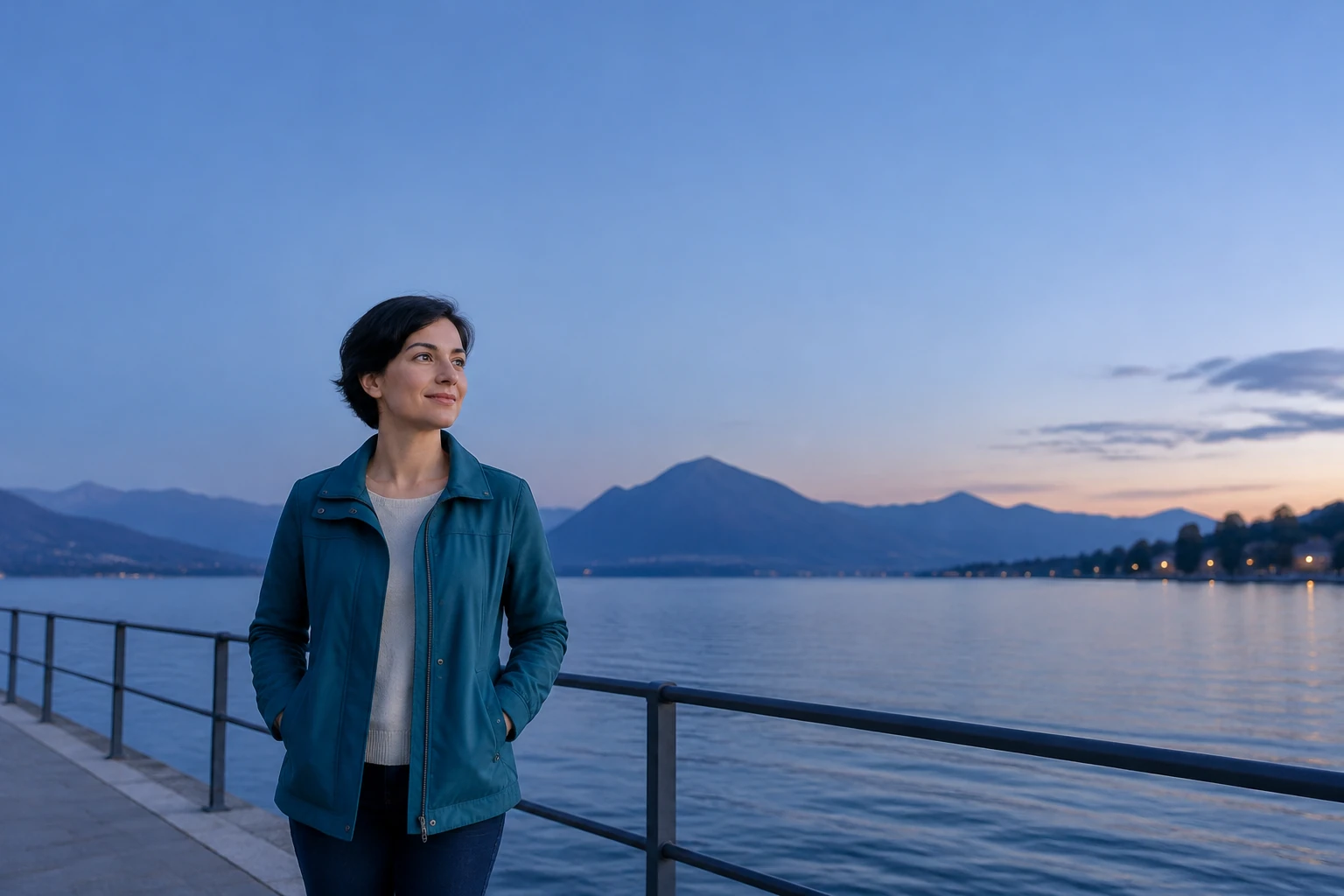
Text to Video or Image to Video?
Text to Video starts with the written scene and does not require an uploaded file. Its prompt can describe the person, setting, camera behavior, fireworks, and mood from scratch. Image to Video starts with one uploaded photo and an editable prompt that adapts what is actually in that photo. Keep the photo's real subjects, clothes, and framing in mind when writing instructions; the example woman is not a replacement subject. This page provides themed prompt defaults only. It does not add an existing-video upload, layer editor, mask, or timeline.
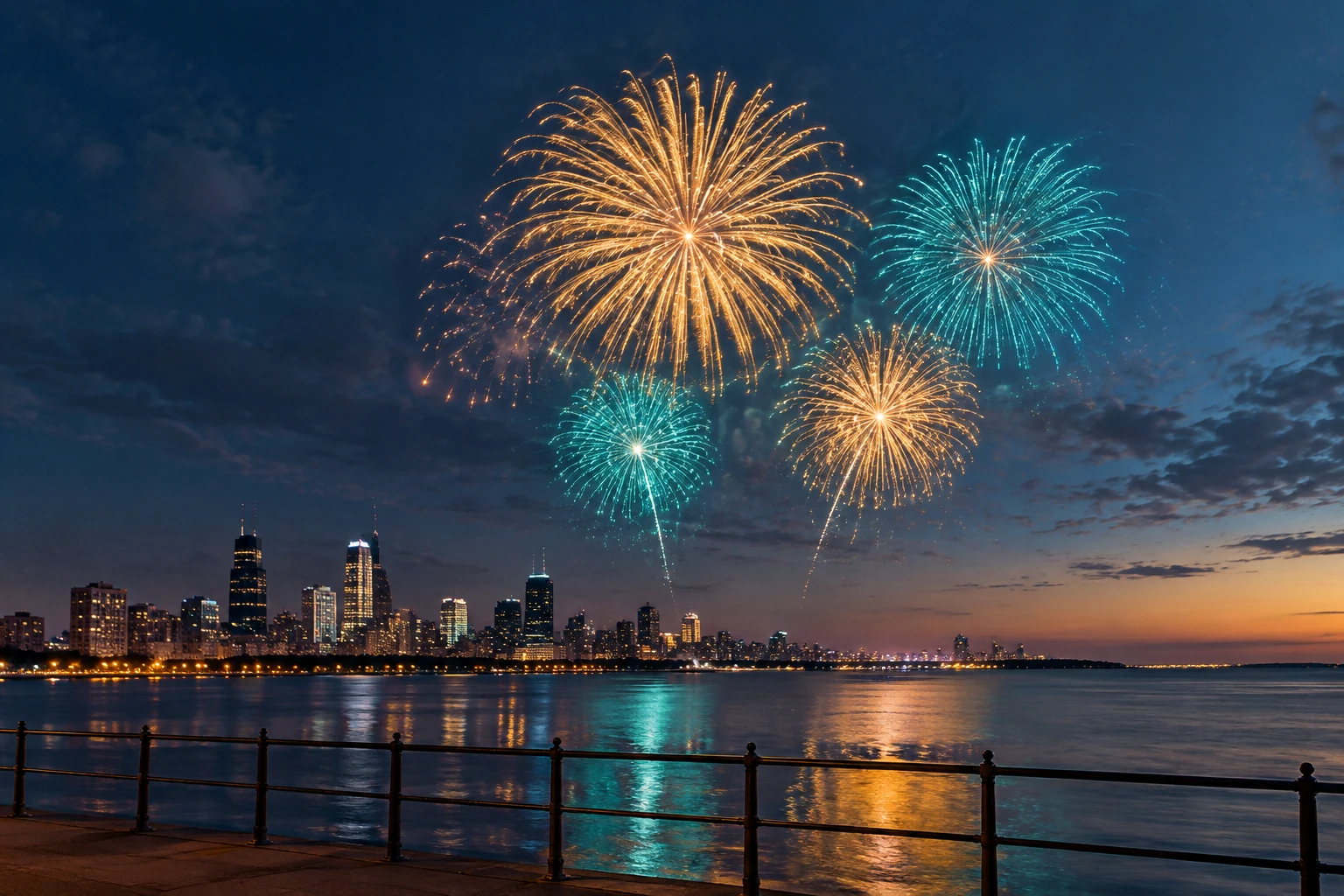
Direct bursts without crowding the subject
Describe where the fireworks belong and how they unfold, rather than asking for a constant display. Trails should rise behind the subject, open into a few expanding bursts, and fade quietly. Ask for a steady camera and minimal subject movement so the greeting remains readable. In a photo-based prompt, keep all bursts behind the people and avoid asking for new faces. If water is present, request subtle reflected light; if it is not, do not force a lake into the picture.
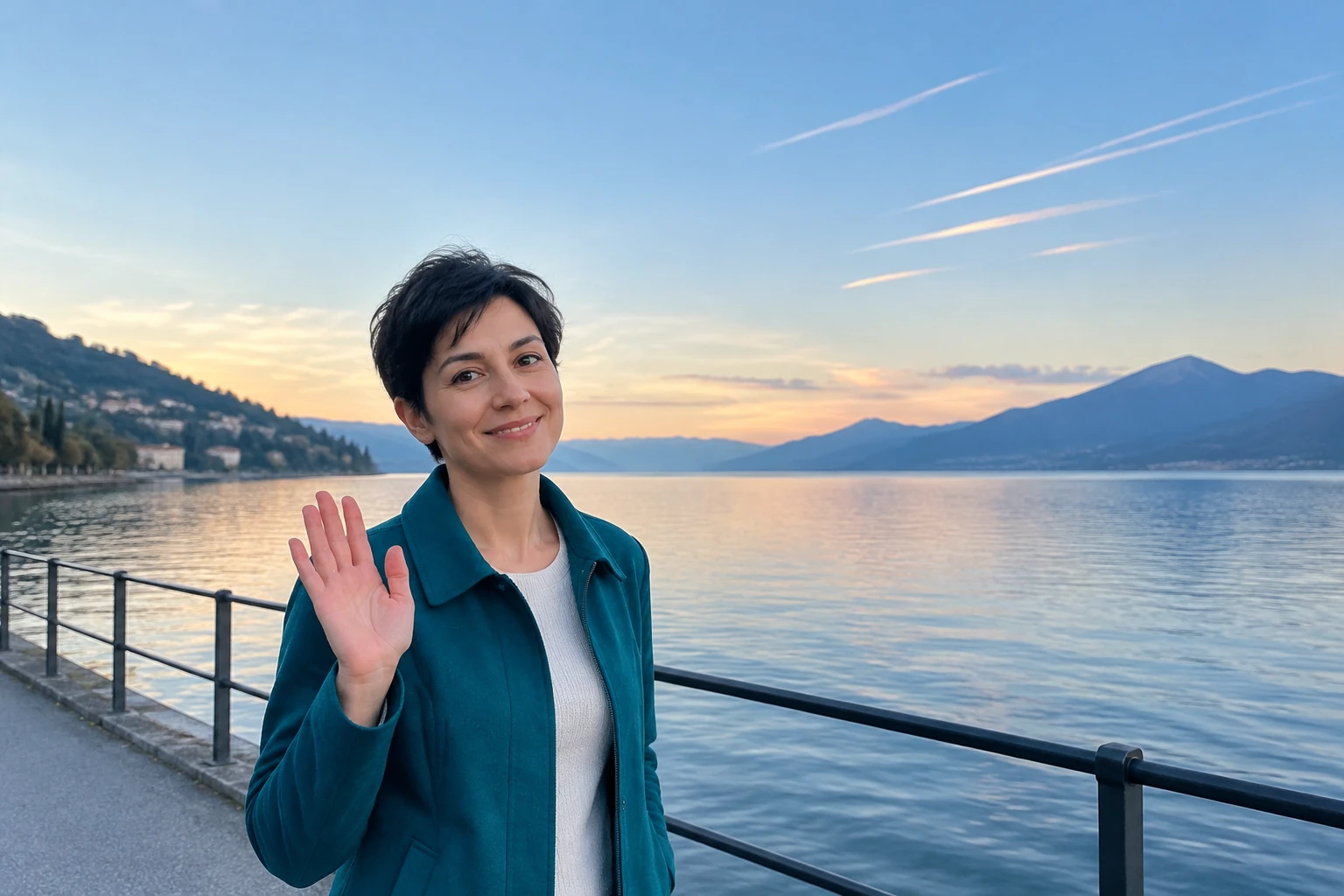
Review the whole clip before sharing
A single attractive frame cannot tell you how the full sequence behaves. Watch from beginning to end, checking that the face stays readable, hands look natural, exposure remains comfortable as bursts appear, and fireworks arrive and fade at a suitable pace. Listen to the sound, if included, and check whether the crop preserves the subject and relevant setting. If a problem appears, change one prompt detail at a time and review again. Downloading and any further editing depend on the controls available in your account; add or change names and music in another editor if needed.
Fireworks questions
What does this fireworks video effect guide do?
It provides themed, editable prompt defaults for Seedance 2.5 Text to Video and Image to Video, with a calm milestone greeting as the example. It does not add a new preset or extra editing tools.
Can I use text instead of a photo?
Yes. Text to Video uses an editable prompt and requires no uploaded file. Image to Video uses one uploaded photo and an editable prompt to adapt that photo.
Are credits required, and is the effect free?
Check the current quote beside Generate and the eligibility and credit conditions shown for your account. Free access, if available, depends on current terms and eligibility; this guide does not promise free credits or a fixed price.
How long will generation take, and where can I find the task?
Wait times vary. Pending and completed tasks appear in History, where you can check the task status.
Will the photo subject stay identical?
A prompt can ask the model to preserve the photo's actual subjects, clothes, and framing, but identity is not guaranteed. Review the entire clip, including the face, hands, exposure, fireworks timing, sound, and crop.
Can I download the clip and add names or music?
Use the download controls available for your account. If you want to add or change names or music, make those edits in another editor; this guide does not add a timeline or editing layer.
More ideas to explore
klingai.me · Updated
See update history
- — This guide uses the existing Seedance 2.5 Text to Video and one-photo Image to Video form, with themed prompt defaults for a calm lakeside milestone greeting. Current output options, the quote beside Generate, and account eligibility should be checked in the app.