
Black Friday Poster Maker for a Bold Gadget Campaign
Black Friday Poster Maker: Gadget Campaign Prompts
History
A Black Friday Poster Maker helps you shape a campaign image around a clear product, strong contrast, and a short headline. On klingai.me, choose Text to Image to create a fictional product concept from an editable prompt, or Image to Image to adapt one uploaded real product photo with an editable prompt. Start by deciding which mode fits your project, then describe the composition, lighting, and open space for copy. Review the result and add verified sale details in your usual editor after downloading.
Create your Black Friday poster
Choose the mode that fits your image
Text to Image creates a fictional product poster from an editable prompt and does not use an upload. Image to Image takes one uploaded real product photo plus an editable prompt, adapting the design to the item in that photo. Use the fictional speaker prompt for a concept; for a real product, describe the visual treatment you want without asking to replace the uploaded item.
Prepare the product photo and composition
For Image to Image, select one clear photo where the product is easy to distinguish from its background. Check that its shape, markings, and materials are visible before uploading. In the prompt, specify placement, background, palette, lighting, and the space you want to leave for a headline. Keep the product large enough to recognize and the electric graphic shapes secondary.
Set the visual direction and generate
Write the style into the prompt: there is no dedicated style preset. Choose from the current Seedream 5.5 size and aspect-ratio options, then check the current credit quote shown by Generate before starting. After generation, use History to check the job status and inspect the image at a useful size.
Review the image and finish the campaign
Compare the result with the product photo, checking its form, count, color, markings, and materials. Check the headline for spelling and legibility. After downloading, add or correct precise lettering and enter only merchant-verified prices, discounts, dates, and offer conditions in your usual editor.
Build a clear visual hierarchy
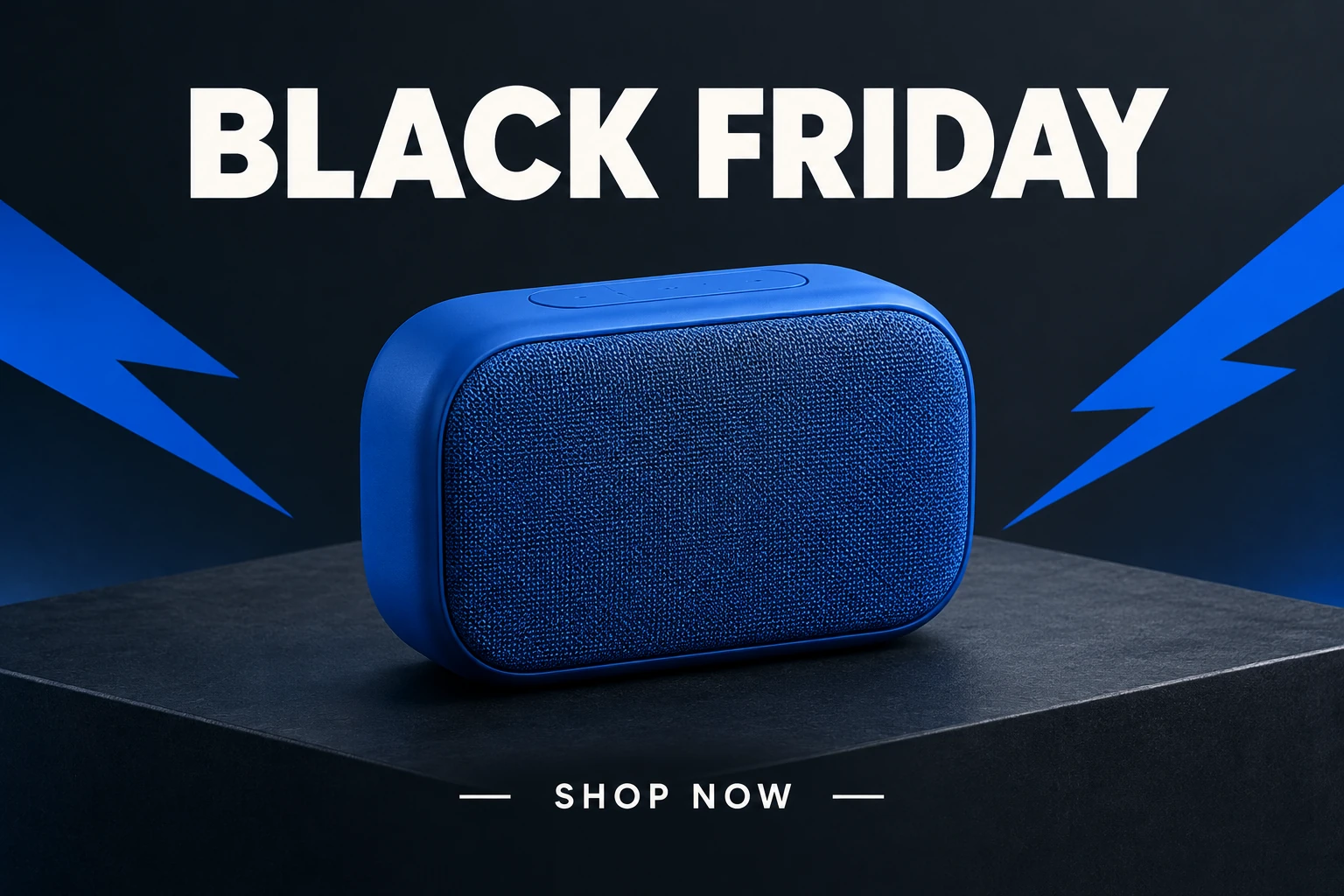
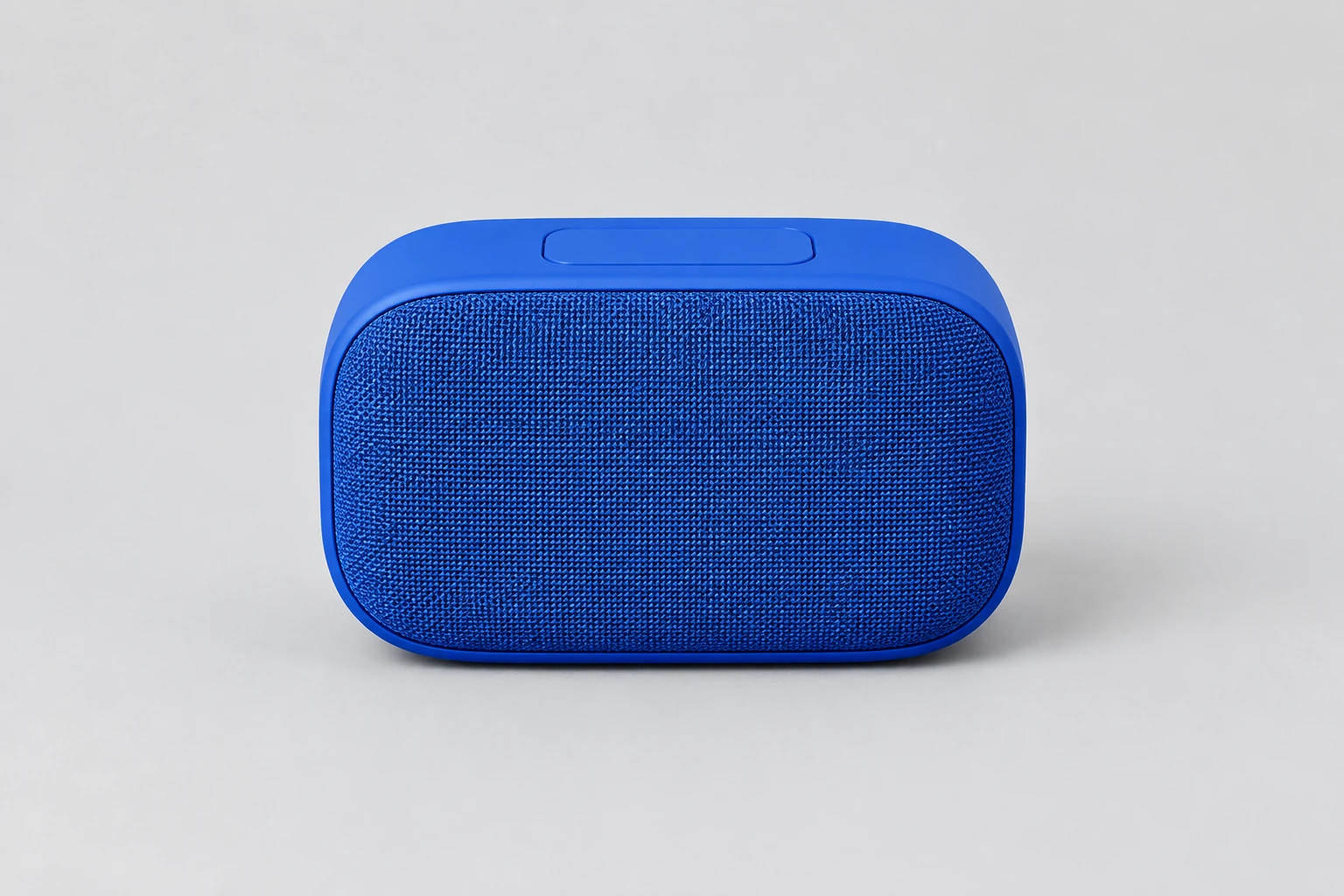
Start with one focal point: the product. In the example, the compact cobalt-blue speaker has a rounded rectangular body, fine fabric grille, and a small blank top button panel. Keep the whole silhouette visible and large enough to read at a glance. Deep charcoal gives it contrast; a few electric-blue arcs add energy without competing for attention. Use the warm-white accent sparingly. Leave generous space around the product and headline, especially near the edges, so the design remains easy to scan.
Give the product photo room to work
For a real item, choose one photo with useful detail and a clear view of the product. Avoid cropping off important parts or using a background that makes the silhouette hard to separate. Image to Image adapts the uploaded item; the speaker in this guide is only a Text to Image example, not a replacement for what you upload. After generation, compare the image with the source photo for altered proportions, missing details, changed colors, or invented markings.
Make lighting and headline choices deliberate
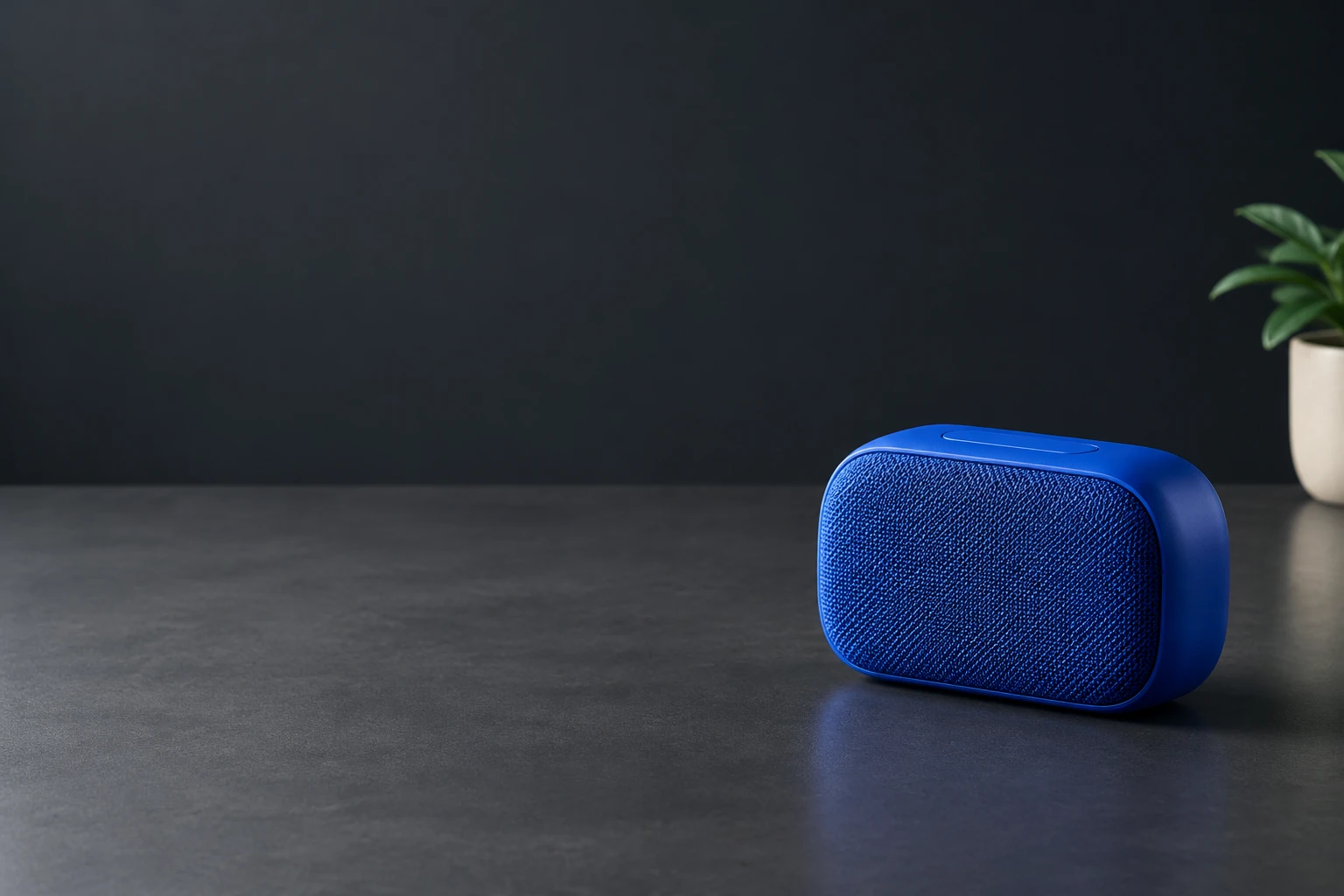
Ask for crisp studio lighting and a subtle grounded shadow to separate the product from the background. Keep graphic shapes restrained and avoid placing them across important product details. Short prompt text such as “BLACK FRIDAY” and “SHOP NOW” gives the concept a simple hierarchy, but inspect every letter in the result. Add final lettering in your usual editor after downloading, where you can check the type size, contrast, alignment, and spacing.

Revise prompts one variable at a time
If a result is close but needs work, change one prompt instruction per revision. For example, adjust product scale without changing the palette, or increase the margin without changing the lighting. This makes it easier to see what improved the composition. Before publishing, verify that the product still matches the source, the headline reads correctly, and the image fits the intended placement. Enter real offer terms only after checking them against current merchant information.
Black Friday poster questions
Can I use the tool for free?
Access depends on the credits or offers currently available to your account. Check your account and the live credit quote beside Generate before starting; no specific free allowance is guaranteed.
How many product photos can I upload, and does Text to Image need one?
Image to Image uses one uploaded real product photo plus an editable prompt. Text to Image uses an editable prompt and does not require an upload. For the speaker example, keep the grille and top controls visible.
How do I find the credit cost and compare it with my balance?
Check the current credit quote shown by Generate before you start, then compare it with the credit balance displayed for your account. Quotes and available balances can change, so use the values shown at the time you generate.
How long does generation take?
Waiting time varies. Check History for the job status rather than relying on a fixed time estimate.
How should I check the sale lettering and offer details?
Inspect generated lettering for spelling and readability, then add or correct the final text in your usual editor after downloading. Verify every price, discount, date, and offer condition against current merchant information before publishing.
How do I prepare the downloaded image for screen or print placement?
Choose the available size and aspect ratio that best fit the intended placement, then check the downloaded image’s dimensions, crop, readability, and quality at its planned display or print size. If your requirements call for a particular print setup or file format, confirm those separately; vector and print-PDF export are not promised here.
More ideas to explore
klingai.me · Updated
See update history
- — New practical guide to a bold Black Friday gadget campaign, with clear instructions for the two image modes, composition, prompt revisions, and prepublication checks.