
Create an AI Day Of The Dead Pet Video
AI Day Of The Dead Pet Video generator
History
Loading history…
To create an AI Day Of The Dead Pet Video, choose Text to Video to describe a scene or Image to Video to animate one prepared pet photo. For a convincing remembrance moment, keep the camera steady and the action simple: continuity in the animal’s coat, face, paws, and tail matters more than elaborate movement. This guide walks through the current workflow and offers prompts you can adapt.
Storyboard preview: planning frames
Observe a retriever at rest
Create your pet tribute video
Choose a creation mode
Select Text to Video to describe the pet and scene from scratch, or Image to Video to start with one prepared pet photo. The current interface uses an editable prompt and a Try an example button; it does not require an upload in Text to Video.
Prepare a useful photo or prompt
For Image to Video, choose a clear photo showing one pet, with the face and body easy to see and little visual clutter. Keep the prompt focused on the setting, two small steps, and a pause. Adapt the edit prompt to the actual animal rather than replacing its species or appearance.
Review the live generation options
Select Seedance 2.5 and check the duration, aspect ratio, resolution, and audio options currently shown in the panel. These controls can vary, so use the displayed choices rather than assuming a particular output setting. Check the live credit information beside Generate before submitting.
Generate and assess continuity
Submit the prompt, then check request status in History. Review the result for consistency in the ears, eyes, coat, paws, and tail across the movement. If details drift or the shot becomes busy, simplify the prompt and try again. Audio follows the live controls; any personal text or music editing is separate where relevant.
Why one steady shot helps
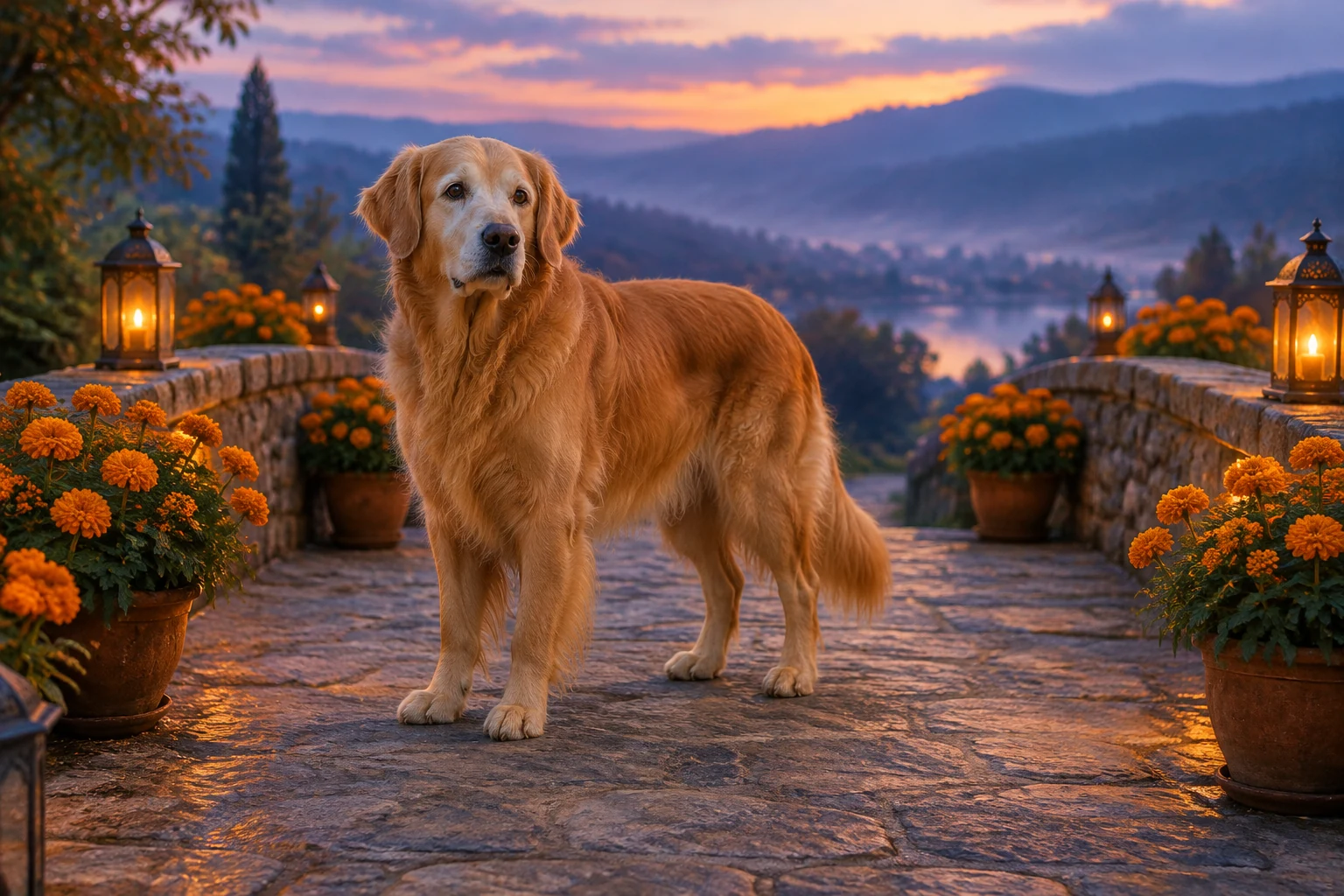
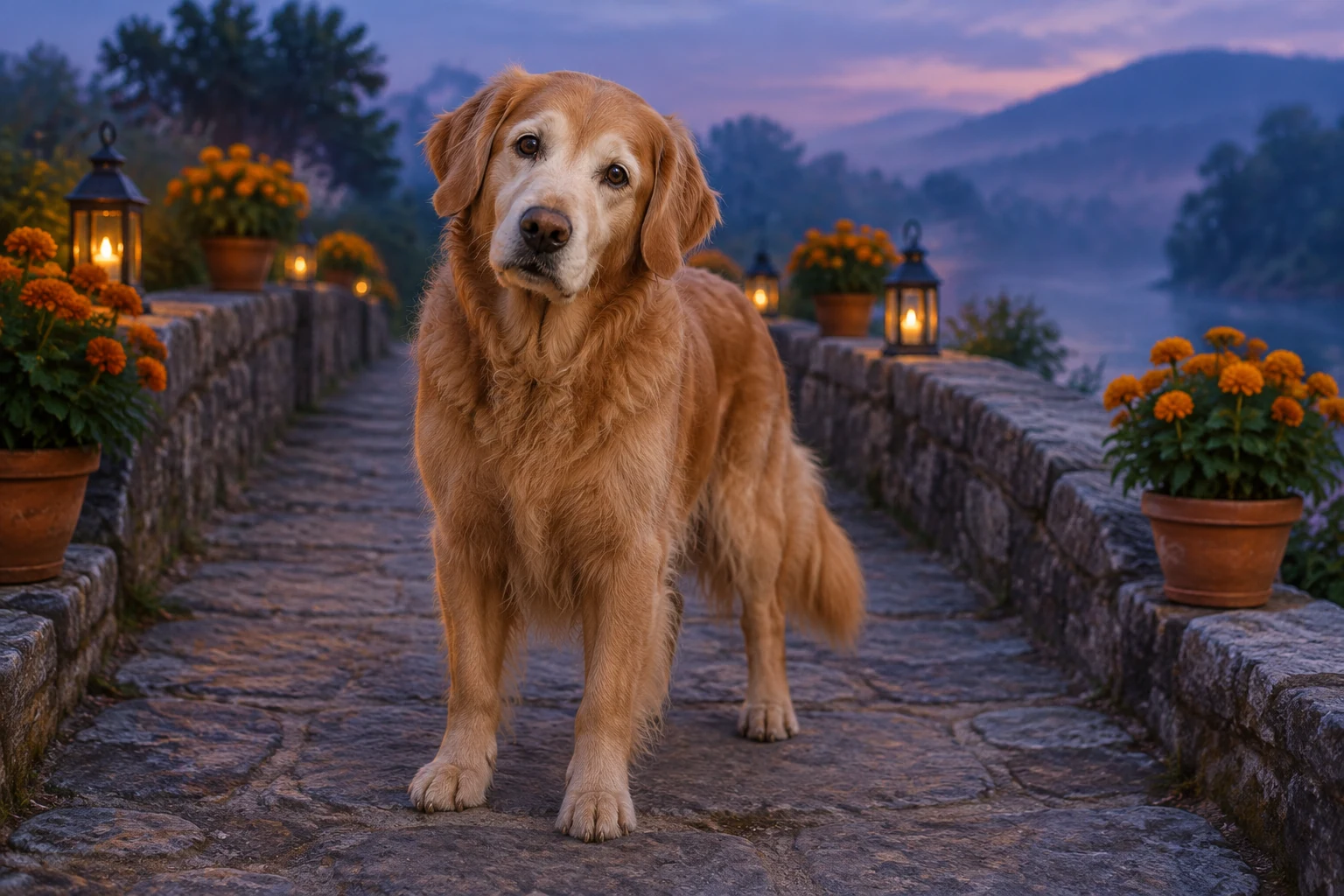
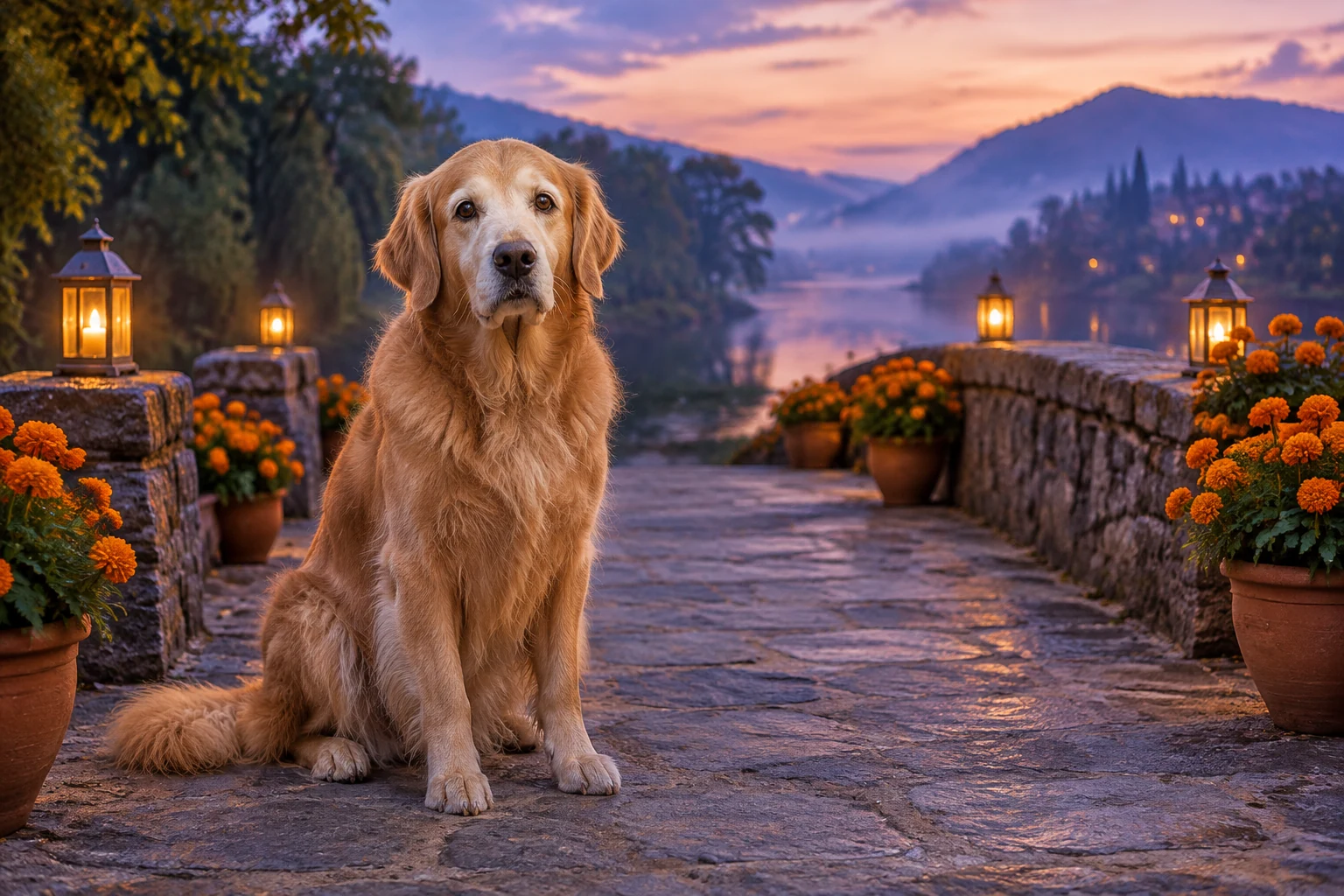
A single low, eye-level view gives the animal’s visible features room to remain readable. Two small steps followed by a calm pause create a clear beginning and ending without asking for complex choreography. In the bridge concept, marigold pots, subtle lanterns, and evening haze provide atmosphere while the pet remains the visual focus. Keep camera movement restrained so attention stays on the animal rather than shifting scenery.
Protect temporal coat and paw continuity
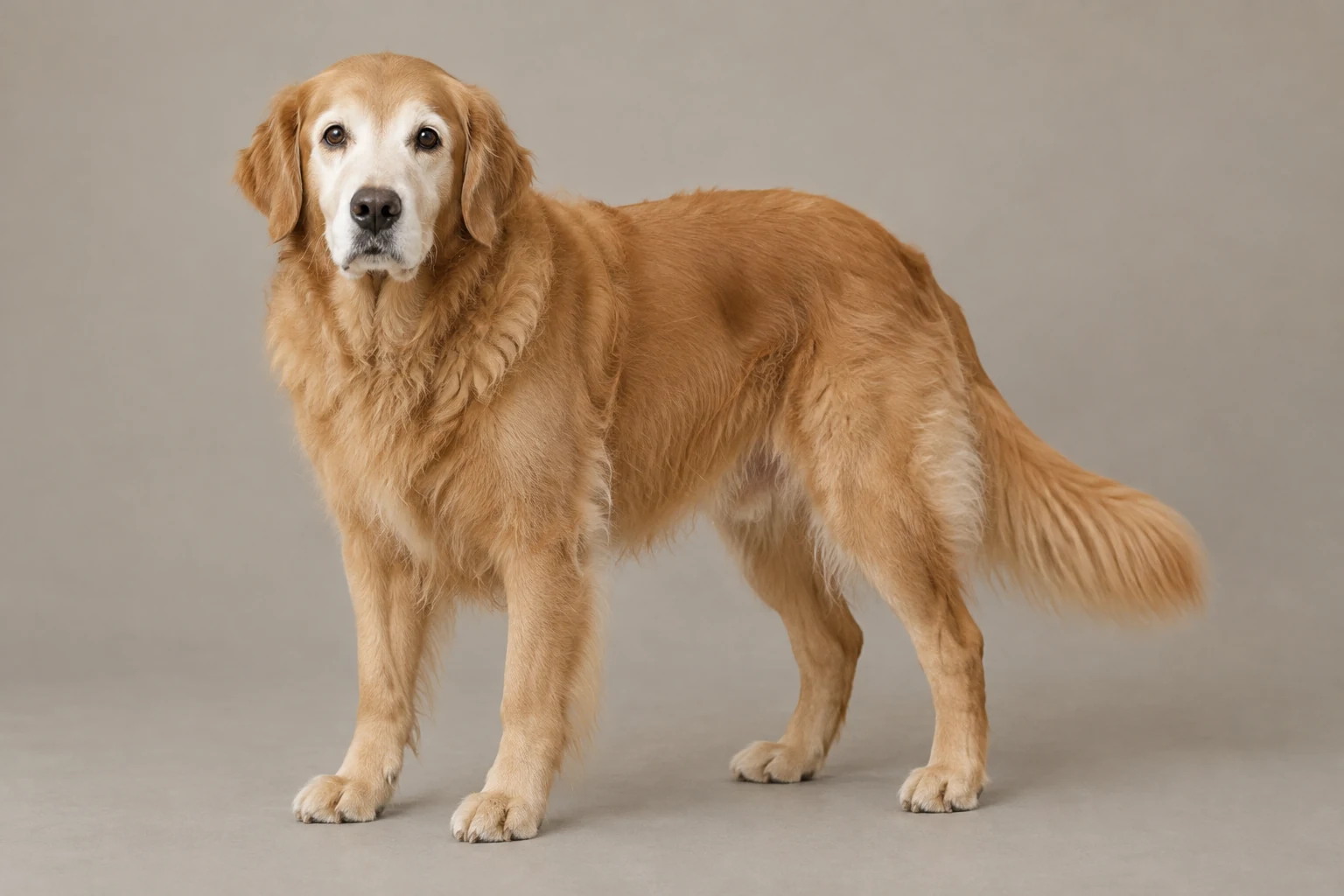
AI video can vary details from one moment to the next. Look closely at the eye shape, muzzle, ear position, coat markings, leg count, and tail as the pet moves. For the fictional retriever example, check that the cream muzzle, honey-golden coat, four golden paws, dark brown eyes, black nose, and relaxed tail remain coherent. With an uploaded photo, assess the animal’s actual features instead of expecting the example breed or colors. A simpler action often makes continuity easier to judge.
Keep prompts focused and personal
Describe the animal, setting, lighting, camera, and small action in plain language. Avoid stacking multiple locations, elaborate tricks, or fast camera directions into one request; if a result feels crowded, remove secondary details before adding more. The supplied prompts are starting points, not guarantees of exact identity or a particular output. Day of the Dead is used here as a remembrance theme: treat the result as an imagined creative remembrance, not recovered footage or a real visit.
Review controls and request status
Before generating, read the options and credit information currently displayed in the panel. After submission, use History to check the request status. If the result needs another pass, revise one or two prompt details at a time, especially the movement or camera instruction, so you can tell what changed. Audio is governed by the available controls; this guide does not bundle a song or promise a particular soundtrack.
Pet tribute questions
Can I create a video without a pet photo?
Yes. Choose Text to Video and describe the animal and scene in the editable prompt. Image to Video starts from one prepared pet photo.
Can I use a cat photo with the edit prompt?
Yes. The edit prompt is written to preserve the supplied animal’s actual species and appearance, whether the photo shows a dog or cat.
How can I help keep the pet’s appearance consistent?
Use a clear single-pet reference when editing, request modest movement, and check the face, coat, ears, paws, and tail throughout the result.
Where do I find duration and aspect ratio settings?
Check the current generation panel. Seedance 2.5 offers the duration, aspect ratio, resolution, and audio options shown there.
Where can I check credits and request progress?
Check the live credit information beside Generate before submitting. Use History to check the request status.
Does the storyboard preview show a generated walk?
No. It is a silent nine-second planning clip made from three still frames, not an actual generated animal walk.
More ideas to explore
klingai.me · Updated
See update history
- — Added a pet-remembrance video guide with one-photo and text workflows, separate editable prompts, four theme illustrations, a silent planning preview, and a motion-review checklist, plus a filmed pet-motion reference and its matching cover.