GPT Image 2.6 AI Image Generator
Create and refine a character still
History
Make a clear original character still for a visual story with GPT Image 2.6 AI Image Generator on klingai.me. Describe the subject, composition, lighting, and materials, then choose Text to Image for a prompt-only start or Image to Image to refine one actual reference. This guide focuses on GPT Image 2.6 Flare and GPT Image 2.6 Sunburst, both enabled for generation and editing. Check your account access and the live credit quote before Generate; neither model has free-eligible access. Treat the result as a still image: inspect its silhouette, wooden joints, edges, materials, lettering, and preserved details, then make a focused revision.
Create and refine one clear image
1. Plan the still
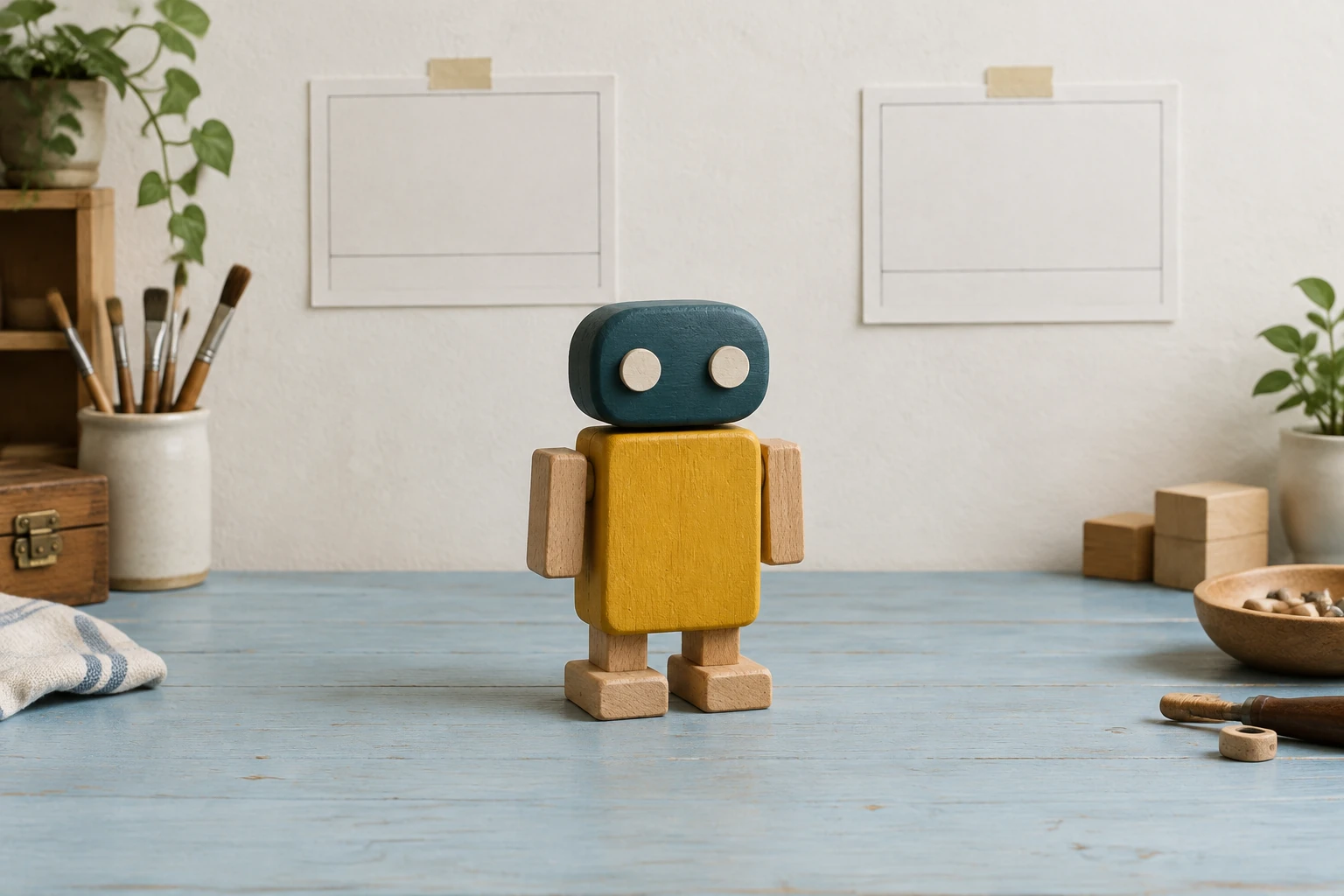
Write down the character's defining shapes, colors, materials, and joints. Add the framing and setting: for example, a full figure on a pale blue tabletop, an off-white wall, and blank storyboard cards placed well behind it. Specify the light and the details that must remain visible. A clear prompt distinguishes the subject from its environment and gives you practical points to review.
2. Choose a starting mode
For a new concept, select Text to Image and enter an editable prompt; this mode uses zero uploads. For a refinement, select Image to Image, upload one actual reference image, and enter an editable prompt. The edit prompt should name the change you want and the visible design details to preserve. Check that the reference is the one you intend to work from before generating.
3. Check access and generate
Choose GPT Image 2.6 Flare or GPT Image 2.6 Sunburst from the model selector. Other image models may also be available. Current model and size or aspect choices determine the live Required Credits, so check account access and the quoted requirement before selecting Generate. Flare and Sunburst have no free-eligible access; do not assume a free allowance or fixed price.
4. Review and revise
Check status and find ready images in History. Review the complete silhouette, the separation of limbs from the torso, wooden joints, edge clarity, material appearance, and any unwanted lettering. For Image to Image, compare the result with the reference and check which visible details remain. If something needs work, request one specific change at a time, such as clearer joint edges or softer background light, then review the next still.
Build the prompt around what needs to read
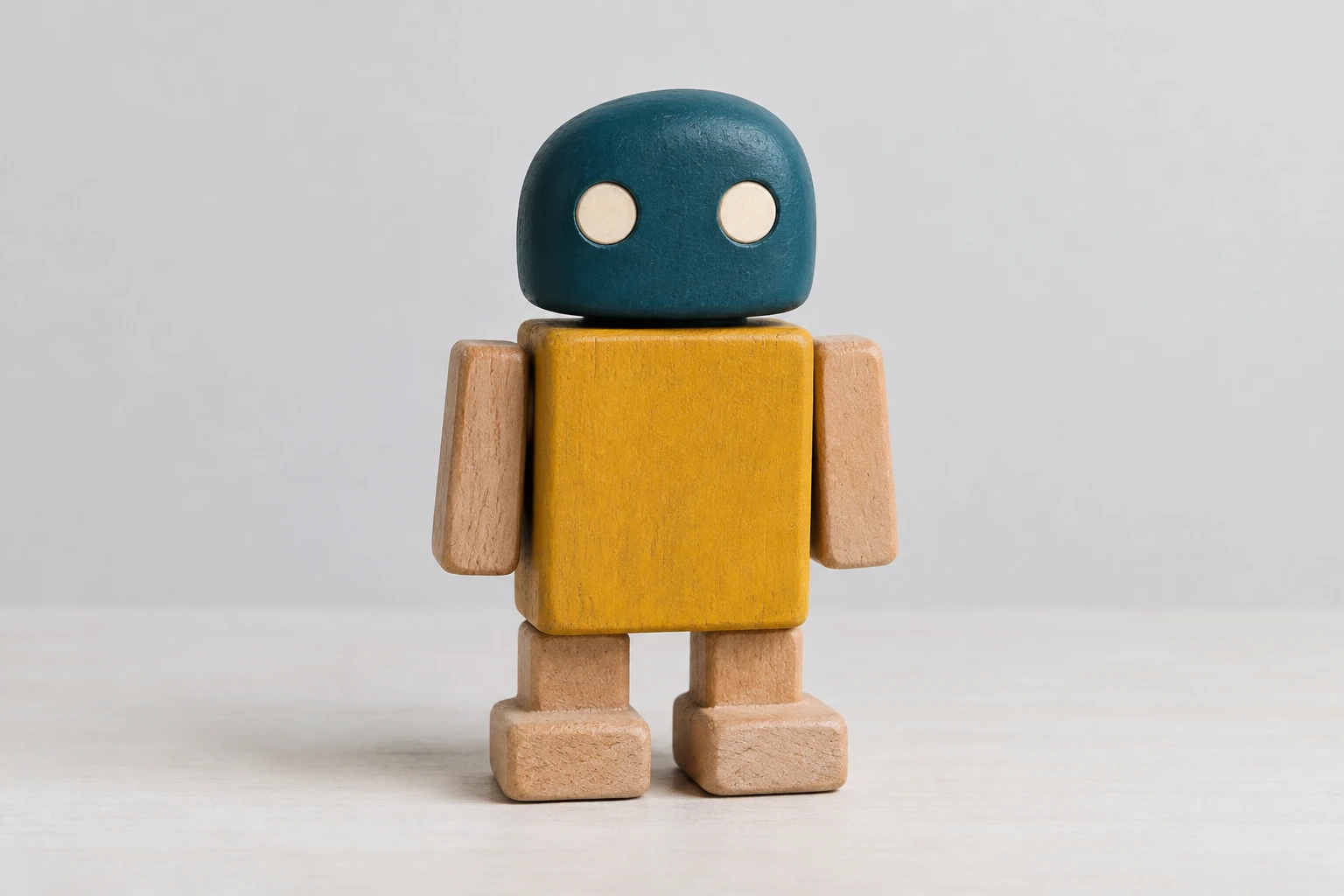
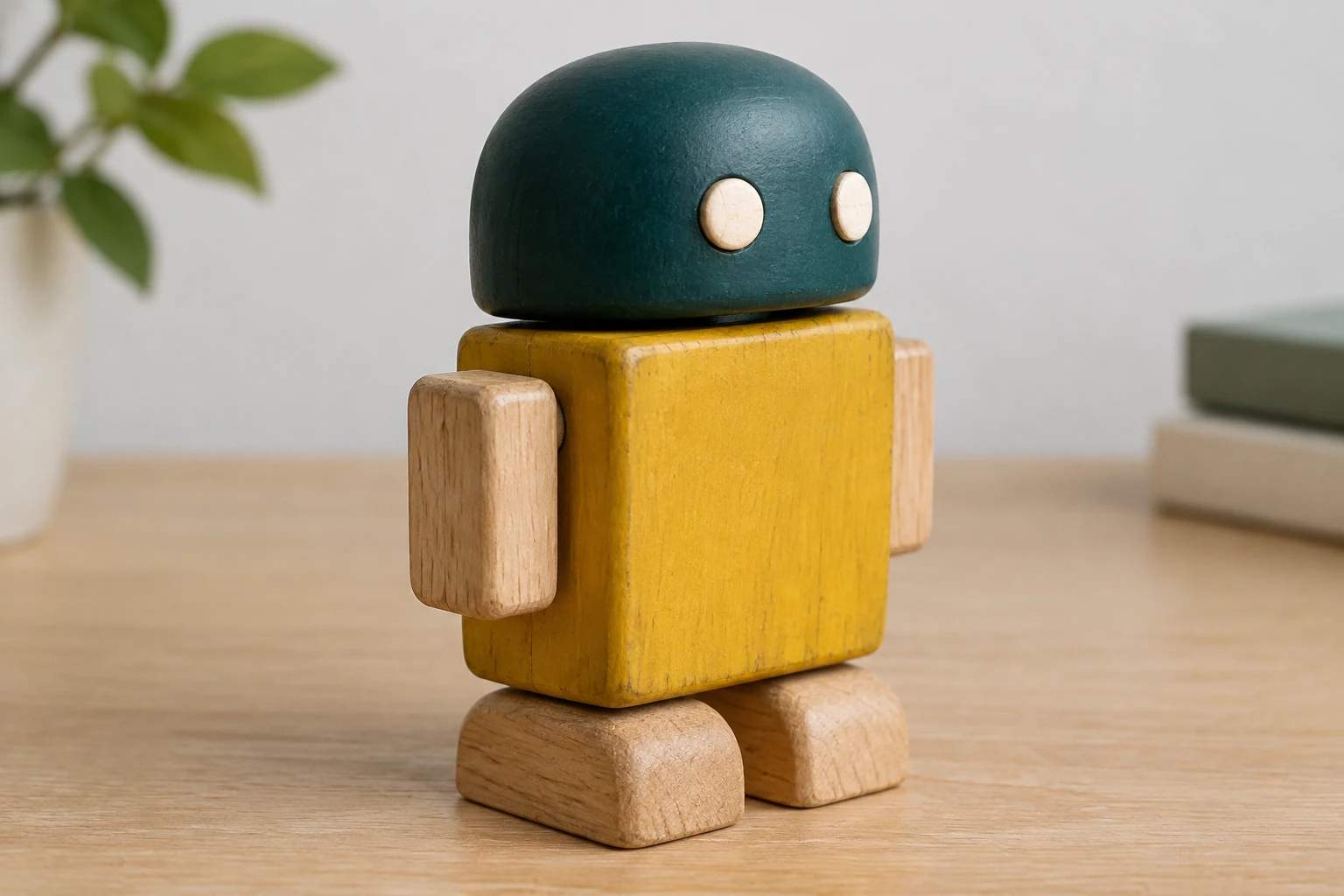
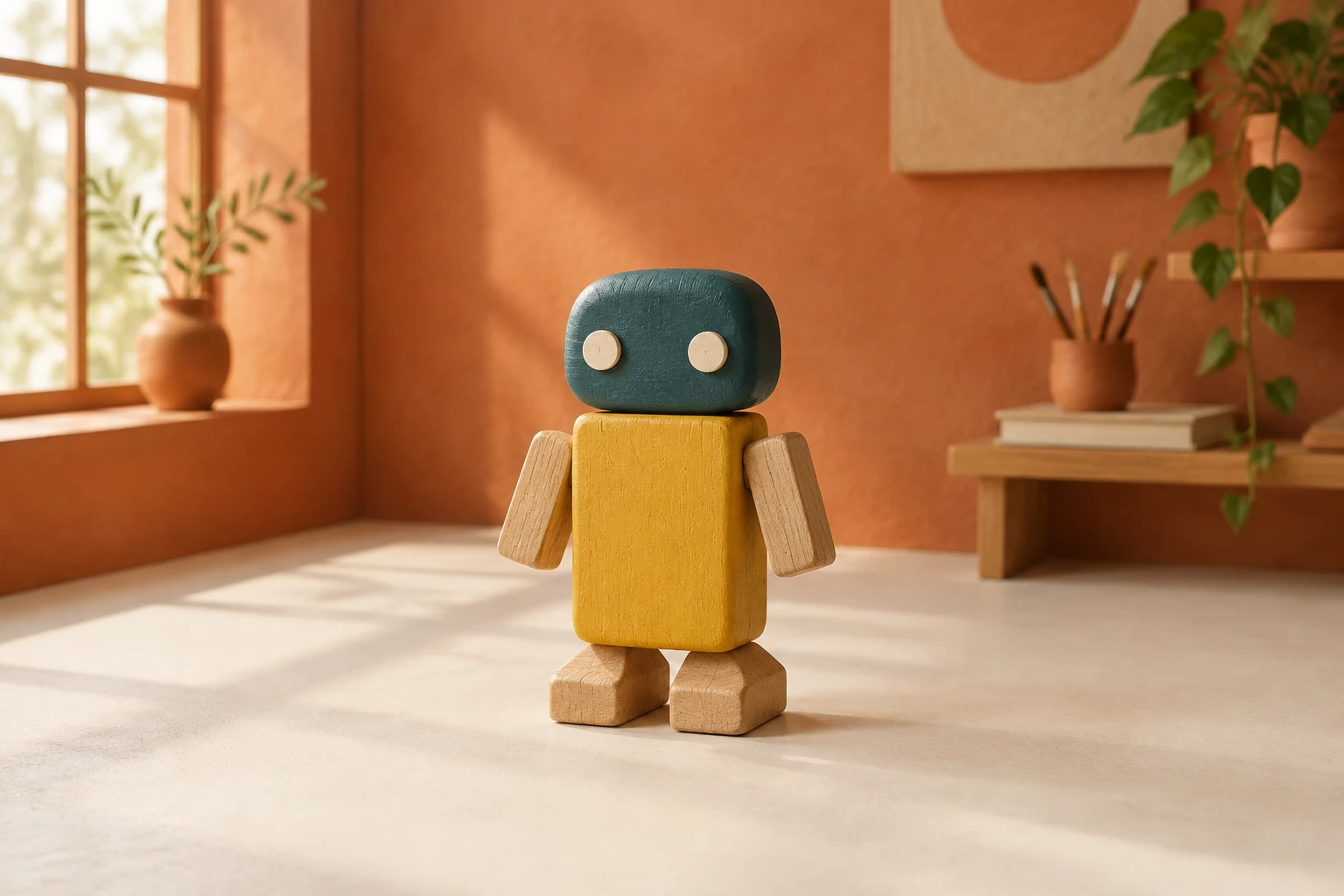
Describe the character before describing the set. For a small wooden robot, state the rectangular torso, rounded head, cream eye insets, block arms, and sturdy feet; then specify mustard yellow, dark teal, and natural wood. Name the framing explicitly—full figure, unobstructed silhouette—and place background objects well behind the subject. Finish with lighting and material cues, such as soft side-window light, painted surfaces, and visible wood grain. Ask for no writing or logo when a clean still matters. These details give you a concrete checklist for reviewing the image rather than a promise of exact fidelity.
Use a reference for a focused refinement
Image to Image accepts one reference image alongside an editable prompt. Work from an actual photo of the object or character you want to retain; the supplied image, not a generic example, should define its visible identity, design, and colors. Keep the requested change narrow, such as softening only the lighting while preserving the existing setting, proportions, pose, materials, and distinctive details. Then compare the resulting still with the source: look for altered shapes, shifted colors, missing joints, softened edges, or added lettering. If a detail changed, make that the next specific revision. Text to Image is different: it takes an editable prompt and zero uploads.
Inspect the still before you keep it
Start with the outer contour. Can you read the head, torso, arms, and feet at a glance? Look next at the wooden joints and where parts meet; check for edges that merge into the background or details that appear inconsistent with the described materials. Zoom your attention to paint, grain, and small features such as the eye insets. Inspect the background for accidental text or distracting objects, even when the prompt asks for blank cards. For a reference edit, verify preserved visible details rather than assuming the image will match the photo exactly. Use History to locate status and ready images, then iterate with one clear correction.
Treat model and credit details as live choices
Choose GPT Image 2.6 Flare or GPT Image 2.6 Sunburst for the still you want to create or edit. For a useful comparison, keep the same prompt and reference, use matching settings where available, and review the silhouette, joints and materials in each result. Other image models may also be available. Current model and size or aspect choices determine the live Required Credits. Check account access and that quote before Generate; these two models require paid eligibility. Use History to follow status and find ready images.
GPT Image 2.6 questions
What does the GPT Image 2.6 AI Image Generator do?
It supports still-image generation and editing from an editable prompt. For a visual story, you can start with a character description or refine one supplied reference, then review the resulting still and request a focused revision. This is a still-image guide, not a guide to animation, GIFs, or video.
Can I generate without a photo or edit with a photo?
Yes. Text to Image uses an editable prompt with zero uploads. Image to Image uses one reference image and an editable prompt. For a character refinement, upload the actual photo you want to work from and describe both the narrow change and the visible details to preserve.
Is GPT Image 2.6 free, and what will it cost?
GPT Image 2.6 Flare and GPT Image 2.6 Sunburst have no free-eligible access, so do not assume a free allowance or trial. Current model and size or aspect choices determine the live Required Credits. Check that your account has access and review the quote shown before Generate; no fixed price is promised here.
How long will generation take, and where do I find the image?
An exact wait is not stated here. Check the generation status and look in History for ready images.
What is the difference between Flare and Sunburst?
GPT Image 2.6 Flare and GPT Image 2.6 Sunburst are separate available models for generation and editing. To compare them for your task, keep the prompt, reference and available settings the same, then inspect the details that matter to your brief. Review the live credit quote for each selected configuration.
How should I revise and review a character still?
Inspect the silhouette, joints, edges, materials, unwanted lettering, and—in an edit—the visible details preserved from your reference. If something needs adjustment, request one specific change and review the next still rather than assuming exact fidelity. Check status and ready images in History.
More ideas to explore
klingai.me · Updated
See update history
- — Added original wooden-character composition and lighting-only reference-edit prompts, four visual studies, mode guidance and live credit-quote checks.