AI Censor Remover
Replace a visible overlay
History
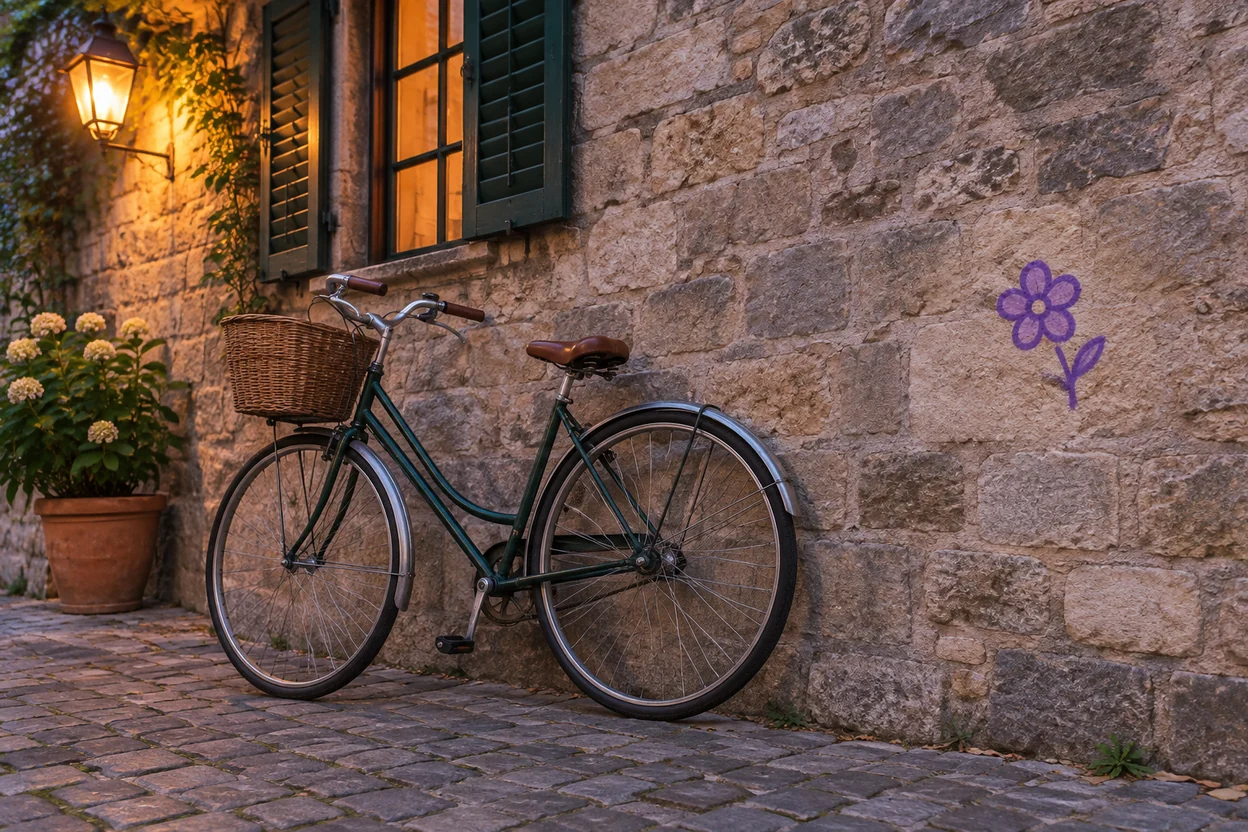
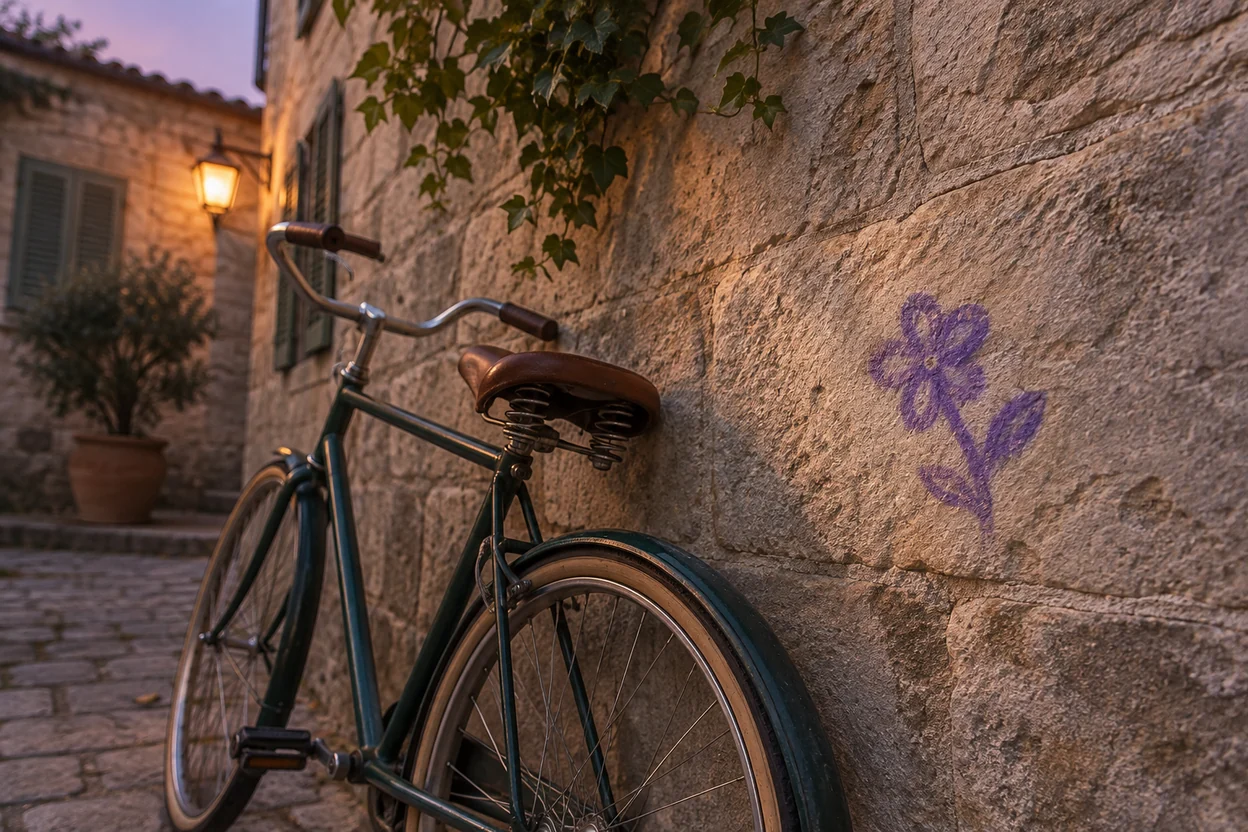
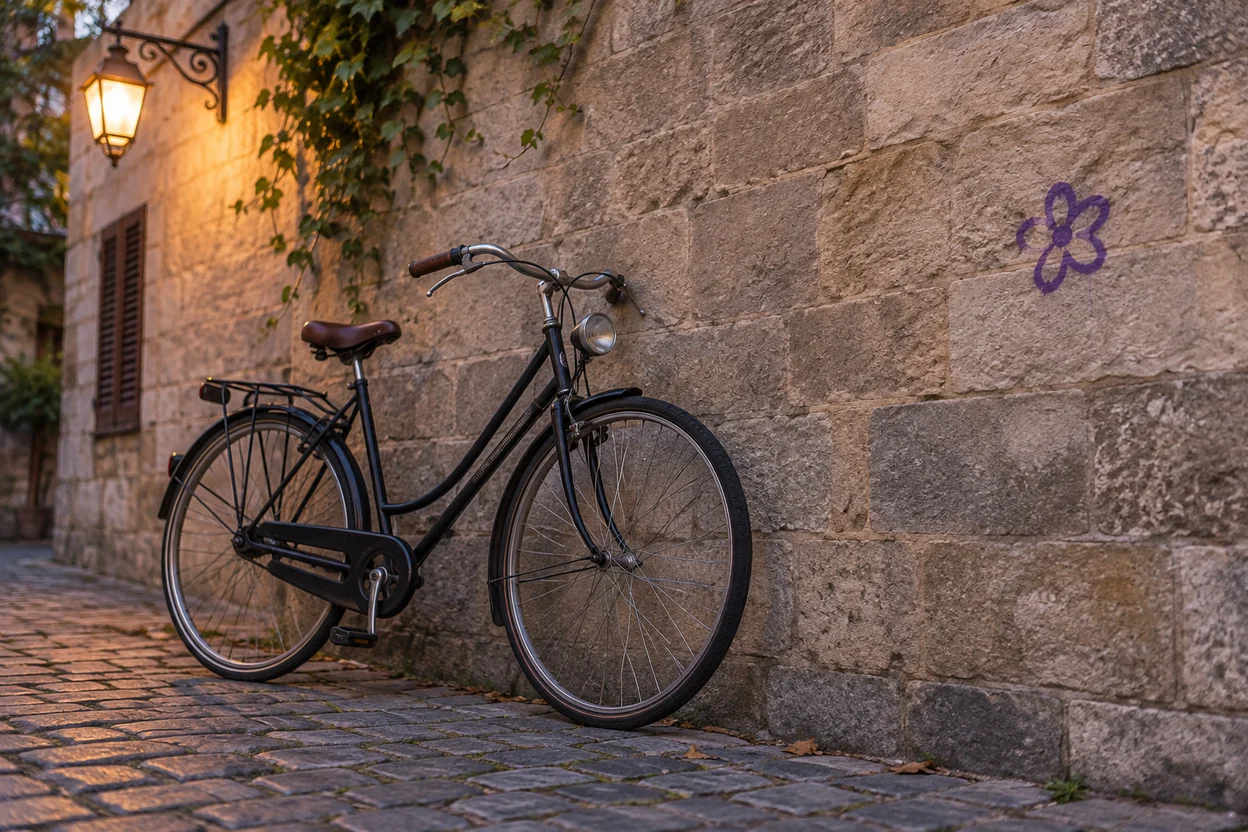
AI Censor Remover helps replace a disposable sticker, doodle, or temporary design label on an image you own or can edit. In edit mode, use one reference photo and identify a mark on an unimportant area, such as a small violet paint doodle on the empty stone wall beside a classic bicycle. The fill is newly synthesized from visible nearby texture; hidden original pixels are not recovered. Keep faces, bystanders, ID details, private or intimate content, and true redactions out of the workflow.
How to use AI Censor Remover
- Choose edit mode and add one reference photo you own or are allowed to edit. Pick a disposable sticker, doodle, or temporary design label on a background area; do not use faces, bystanders, ID details, private or intimate content, or true redactions.
- Describe exactly what to replace and what to preserve. Keep the target area tight: identify the mark and a little surrounding context, and say not to change the main subject, composition, or anything outside that patch. Alternatively, choose text mode, which creates a clean example from scratch without an upload.
- Review the result at full size. Check the repaired texture, edges, lighting, and nearby objects; adjust your instructions if needed. The model used is Nano Banana 2 image edit and generate, with one optional input for the selected mode.
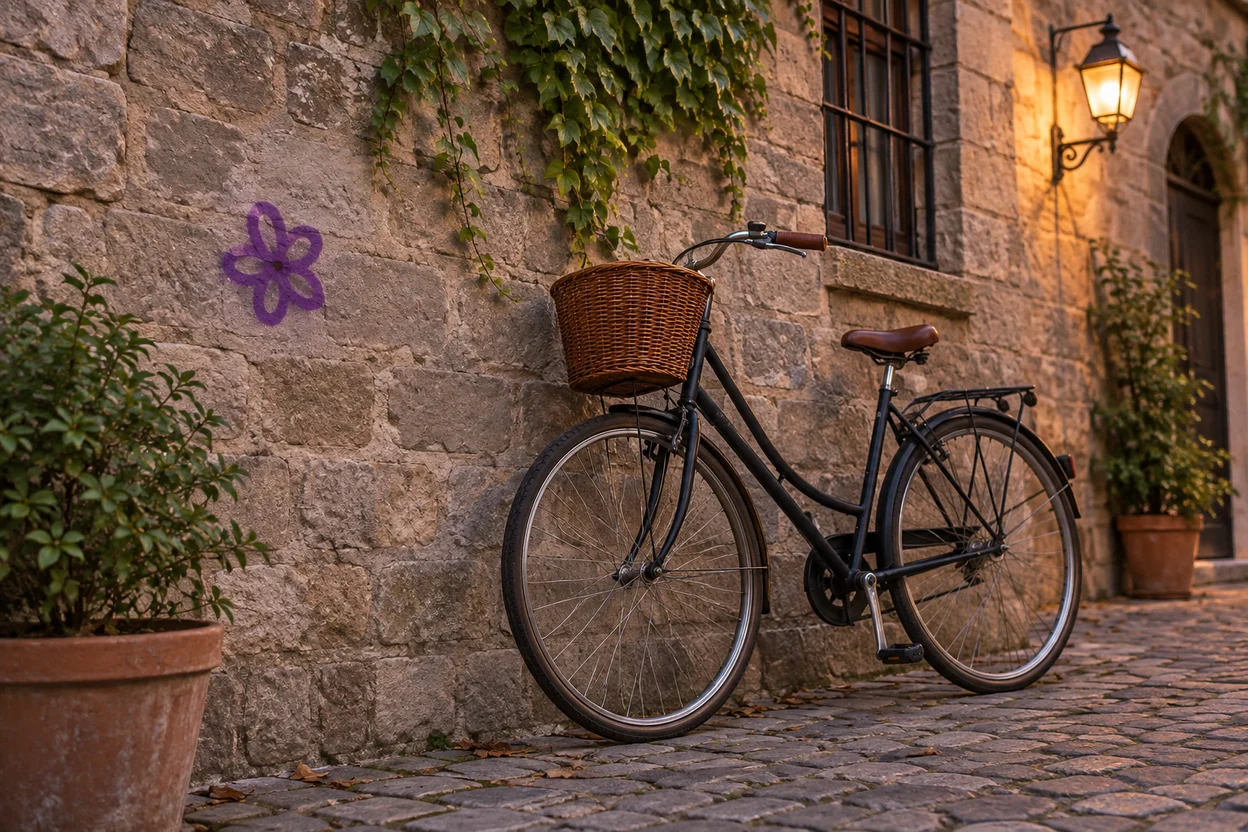
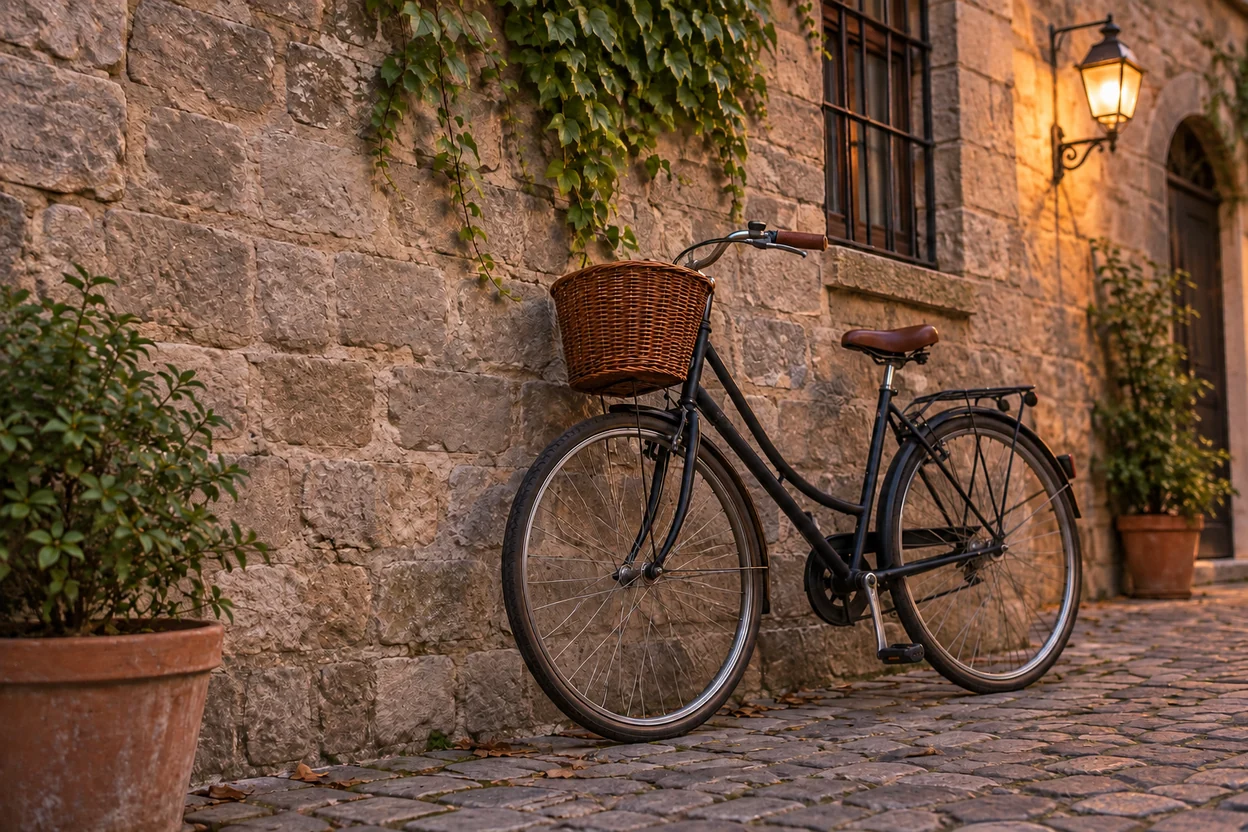
Compare the marked photo and the replacement fill
Check the result before using it
- Zoom in around the repaired area. Look for mismatched stone texture, abrupt edges, repeated patterns, or lighting that does not match the visible surroundings.
- Compare the rest of the image with your reference. Confirm the bicycle, its details, framing, and other scene elements remain as intended.
- Review the displayed quote before proceeding and check History for your result. Keep the original image so you can compare versions.
Questions about removing an overlay
Does this reveal what was under the mark?
No. The tool creates a new fill using visible surrounding context. It does not recover hidden original pixels.
What kind of marks should I use?
Use disposable stickers, doodles, or temporary design labels on an image you own or can edit. Avoid faces, bystanders, ID details, private or intimate content, and true redactions.
What do edit mode and text mode require?
Edit mode uses one reference photo. Text mode creates a clean creative example from a written scene description and does not require an upload.
What should I do if the repair looks wrong?
Check the displayed quote and your result in History. Try a more precise prompt that names the small target area and explicitly says what must remain unchanged.
How long does image generation take?
Check History after you submit. The task status shows when your edit is ready to compare with the original portrait.
Can I try this with my current credits?
Related tools
klingai.me · Updated
See update history
- — Replace a disposable mark on an image you own or can edit by describing a small target area and the visible texture around it. The fill is newly synthesized, not a recovery of hidden content.